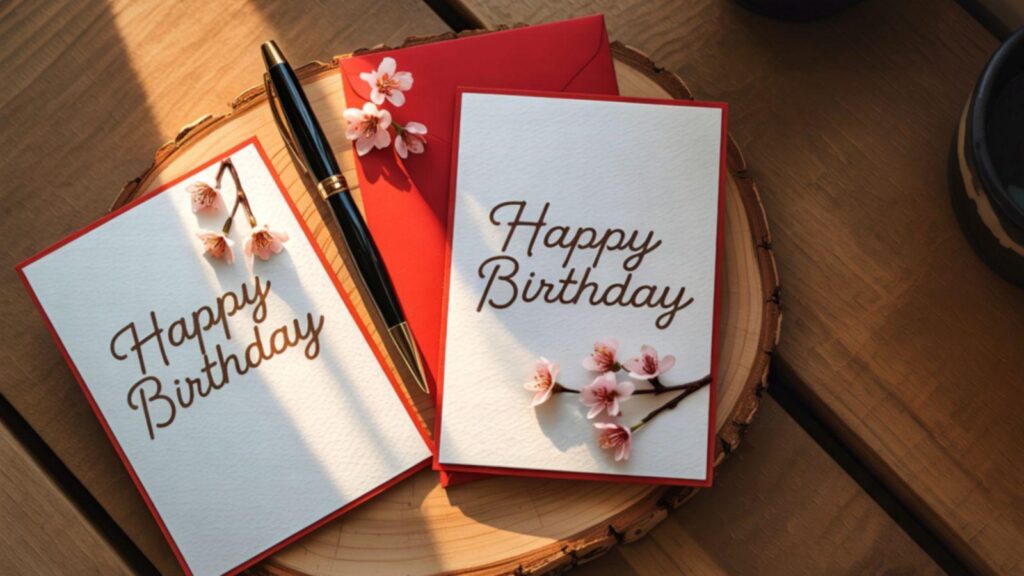
Printable birthday invitations continue to serve a practical purpose. They provide a tangible reminder of an event, communicate details clearly, and help set expectations for guests. Whether for a child’s party, a milestone celebration, or a small gathering, a well-structured invitation reduces confusion and reinforces the tone of the event.
This guide is intended for hosts who need to produce invitations quickly and efficiently. That includes parents planning last-minute parties, teachers organizing classroom celebrations, and anyone working without formal design training. The focus is on structured workflows rather than artistic experimentation.
Invitations customization tools simplify layout decisions by offering preset templates, consistent typography pairings, and built-in print dimensions. Instead of building a layout from scratch, users edit within a tested framework. One accessible way to begin is to use print invitations from Adobe Express, which provides ready-to-edit designs formatted for common print sizes.
The steps below outline how to use tools in this category effectively, with practical notes on where different supporting tools can help at specific stages.
Step-by-Step Guide for Using Invitations Customization Tools
Step 1: Select a print-ready template that matches the occasion
Goal
Start with a layout that minimizes design decisions and ensures proper sizing for print.
How to do it
- Open an invitations customization tool and browse birthday-specific templates.
- Confirm the final dimensions (5×7 inches and A6 are common).
- Choose portrait or landscape orientation based on your preference.
- Preview several templates to compare text placement and image areas.
- Select a layout that clearly separates headline, event details, and RSVP information.
What to watch for
- Overly decorative fonts that reduce readability.
- Crowded layouts with minimal white space.
- Templates designed primarily for digital sharing rather than print.
- Missing margin allowances for trimming.
Tool notes
For drafting event wording before placing it into the design, a document editor such as Google Docs can help structure and proofread text separately before final layout.
Step 2: Insert essential event information clearly
Goal
Ensure all logistical details are complete and easy to read.
How to do it
- Replace placeholder text with the guest of honor’s name.
- Add the full date, including day of the week.
- Include start and end times.
- Provide the full address and any access instructions.
- Add RSVP contact information and response deadline.
What to watch for
- Spelling errors in names or addresses.
- Using script fonts for body text.
- Overloading one section with too much information.
- Inconsistent capitalization or formatting.
Tool notes
If multiple people are reviewing the details, collaboration tools like Microsoft OneDrive can be used to share draft files securely before final export, helping prevent outdated versions from being printed.
Step 3: Customize color and typography with restraint
Goal
Align the design with the party theme while preserving legibility.
How to do it
- Adjust the background color to match the theme (e.g., pastel for toddlers, bold for teens).
- Limit font usage to two complementary styles.
- Increase the headline size for emphasis.
- Keep body text dark against light backgrounds.
- Review at 100% zoom to simulate printed scale.
What to watch for
- Low-contrast color combinations.
- Excessive decorative typefaces.
- Extremely bright colors that may print darker.
- Text that becomes difficult to read at actual size.
Tool notes
Color palette generators such as Coolors can help identify balanced color combinations before applying them in your invitations customization tool.
Step 4: Add images or illustrations thoughtfully
Goal
Enhance visual appeal without compromising print quality.
How to do it
- Upload high-resolution photos (ideally 300 DPI).
- Crop within the template frame rather than stretching images.
- Adjust brightness and contrast if needed.
- Keep decorative graphics minimal and thematic.
- Ensure text remains readable over any background image.
What to watch for
- Blurry images caused by enlarging low-resolution files.
- Text placed over visually busy areas.
- Poor cropping that cuts off faces or key elements.
- Inconsistent image color tones.
Tool notes
If adjusting photos beforehand, basic edits can be made in image viewers or photo editors. For organizing multiple image options before selecting one, file organization tools like Dropbox can streamline selection and prevent duplicate uploads.
Step 5: Prepare the file correctly for printing
Goal
Export a high-quality file that prints accurately.
How to do it
- Review safe margins to ensure no text is too close to edges.
- Enable bleed settings if sending to a professional printer.
- Export as a high-resolution PDF whenever possible.
- Confirm color settings are appropriate for print.
- Save a separate editable version for future reuse.
What to watch for
- Incorrect paper size settings.
- Missing bleed when full-background designs are used.
- RGB color shifts in commercial printing.
- Flattened text that cannot be edited later.
Tool notes
Before sending to a print shop, project tracking tools such as Asana can help manage tasks like proof approval, file delivery, and pickup deadlines without overlapping design responsibilities.
Step 6: Print and manage distribution
Goal
Produce clean prints and distribute invitations efficiently.
How to do it
- Print a single test copy first.
- Use cardstock between 250–300 gsm for durability.
- Trim using a straight-edge cutter.
- Match envelopes to final card size.
- Track RSVPs in an organized list.
What to watch for
- Printer margin shifts.
- Inconsistent ink levels.
- Paper misalignment.
- Forgetting to print extras for last-minute guests.
Tool notes
For tracking RSVPs and guest responses, spreadsheet software such as Microsoft Excel can be used to maintain a simple attendance list without adding design complexity.
Common Workflow Variations
Photo-led design
Start with a full-image template and reduce decorative overlays. Ensure resolution remains high.
Minimalist typography-first layout
Use bold headlines and limited color changes to create a modern look with minimal graphics.
Professional print shop workflow
Export as PDF with bleed and request a proof before finalizing the order.
Home print-and-cut setup
Select templates with generous borders to simplify trimming.
Before You Start Checklist
- Confirmed date, time, and location
- Correct spelling of names
- High-resolution images (if using photos)
- Preferred invitation size selected
- Cardstock available
- Matching envelopes purchased
- RSVP details finalized
- Printer ink levels checked
Pre-Export / Pre-Order Checklist
- Proofread all text twice
- Confirm font sizes at actual print scale
- Check margin spacing
- Verify bleed settings (if applicable)
- Export high-resolution PDF
- Test print completed
- Paper size matches export settings
- Final approval given before batch print
Common Issues and Fixes
Blurry photos
Use original high-resolution images and avoid enlarging small files.
Text too close to the edge
Increase inner margins and check trim zones before exporting.
Color mismatch in print
Adjust brightness slightly and test print before final batch.
Cutting inconsistencies
Use a paper cutter instead of scissors for clean edges.
Incorrect file format rejected by print shop
Export as PDF with embedded fonts and confirm print specifications beforehand.
How To Use Invitations Customization Tools: FAQs
Is a template better than designing from scratch?
For quick results without design experience, templates reduce layout errors and speed up production.
Can these tools handle both print and digital versions?
Yes. Most invitations customization tools allow exporting both formats.
What size invitation should I choose?
5×7 inches is widely accepted and fits common envelopes.
Do I need special software to print professionally?
No. A properly exported high-resolution PDF is typically sufficient.
How long does it take to create a simple design?
With a template-based workflow, most invitations can be completed within 30–60 minutes.